How to Turn on Wifi on Windows Vista

Configuring your wireless connection using Windows Vista Wireless Zero Configuration or WLAN AutoConfig utility

Was this article helpful? Yes No

This document will serve as a guide for Microsoft Vista clients in joining a wireless network using WLAN AutoConfig service.


What is WZC or WLAN AutoConfig?
Wireless Zero Configuration was first introduced with Windows XP.  In Windows Vista it was renamed to "WLAN AutoConfig".

Wireless Zero Configuration (WZC) or WLAN AutoConfig is a service included with modern versions of Microsoft Windows that dynamically selects a wireless network to connect to base on a user's preferences and various settings.  This can be used instead (or in the absence) of a wireless network utility from the manufacturer of a computer's wireless networking device.


Configuring your wireless connection using Windows Vista Wireless Zero Configuration or WLAN AutoConfig utility:

To join a wireless network:

  1. Open the Start menu and click Control Panel.
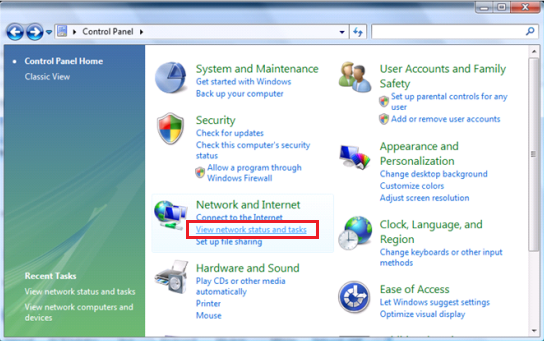
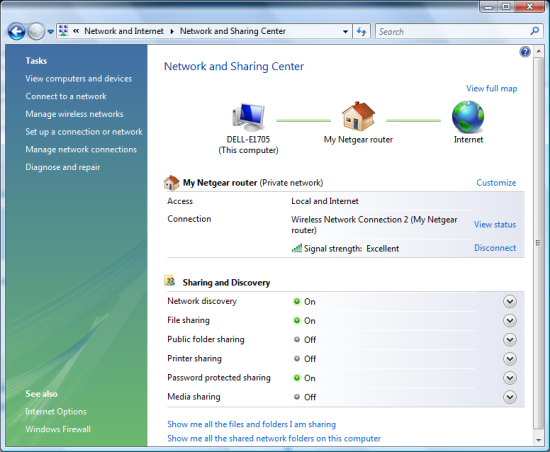
  2. In the Control Panel Home window, click View network status and tasks.
    Image
    If you are using Classic View, double- click Network and Sharing Center.

    Image

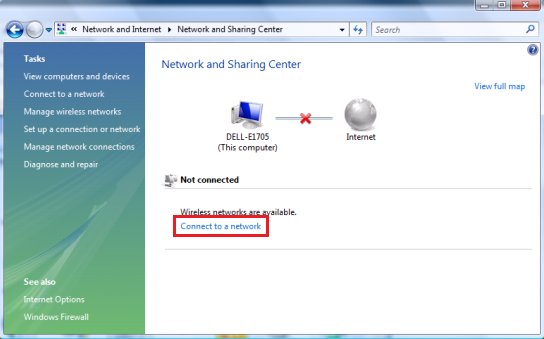
  3. Click Connect to a network.

    Image

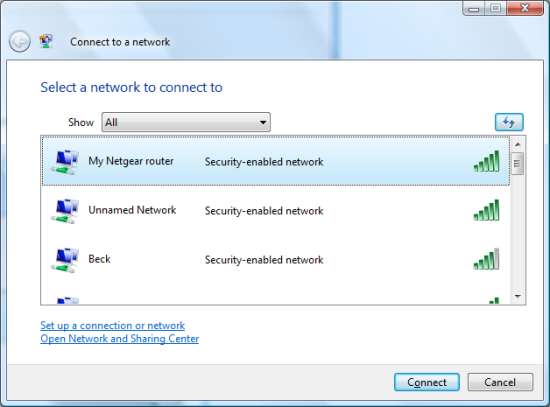
  4. Select your network from the list and click Connect.
    Image

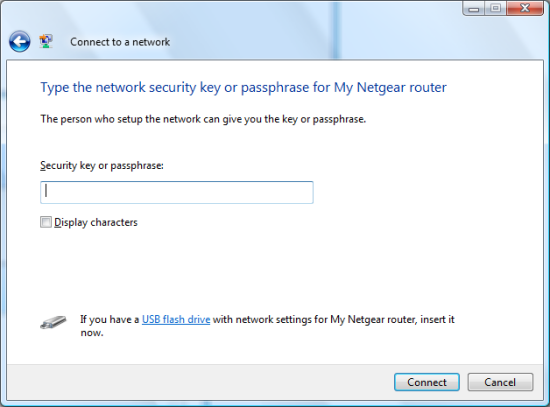
  5. If security is enabled on the network, you will be asked to type your network security key or passphrase for your AP/router.  After typing security key, click Connect.
    Image
              Note: For 64 bit WEP security – enter the 10 Hexadecimal digits from AP/router.
    For 128 bit WEP security – enter the 26 Hexadecimal digits from AP/router
    For WPA or WPA2 security – enter the passphrase from AP/router.

  6. After typing the correct security key, you should be connected to your router. Click Close.

    Image

  7. You can select a location profile for your network or skip it by clicking Cancel.

    Image

  8. You are now ready to connect to the Internet.
    Image

n101692.asp Jul 26, 2007

Last Updated:11/28/2016 | Article ID: 95

Was this article helpful?

Yes No

This article applies to:

  • Wireless AC Adapter (5)
    • A6100
    • A6150
    • A6200
    • A6210
    • A7000
  • Wireless G Adapter and Older (35)
    • HA311
    • HA501
    • MA101
    • MA111v1
    • MA111v2
    • MA301
    • MA311
    • MA401
    • MA521
    • MA701
    • WA301
    • WAB501
    • WAG311
    • WAG511
    • WAG511v2
    • WE102
    • WG111T
    • WG111U
    • WG111v1
    • WG111v2
    • WG111v3
    • WG121
    • WG311T
    • WG311v1
    • WG311v2
    • WG311v3
    • WG511A
    • WG511T
    • WG511TA
    • WG511U
    • WG511v1
    • WG511v2
    • WGE101
    • WGE111
    • WGM511
  • Streaming Players (1)
    • EVAW111
  • Connected Entertainment (3)
    • WNCE2001
    • WNCE3001
    • WNTR2001
  • Gaming Home Theater (1)
    • WNCE4004
  • Wireless N Adapter (22)
    • WN111v1
    • WN111v2
    • WN121T
    • WN311B
    • WN311T
    • WN511B
    • WN511T
    • WNA1000
    • WNA1000M
    • WNA1000Mv2
    • WNA1100
    • WNA3100
    • WNA3100M
    • WNDA3100v1
    • WNDA3100v2
    • WNDA3100v3
    • WNDA4100
    • WPN111
    • WPN311
    • WPN511
    • WPNT121
    • WPNT511
How to Find Your Model Number

Looking for more about your product?

Get information, documentation, videos and more for your specific product.

Need to Contact Support?

With NETGEAR's round-the-clock premium support, help is just a phone call away.

Complimentary Support

NETGEAR provides complimentary technical support for NETGEAR products for 90 days from the original date of purchase.

Contact Support

NETGEAR Premium Support

GearHead Support for Home Users

GearHead Support is a technical support service for NETGEAR devices and all other connected devices in your home. Advanced remote support tools are used to fix issues on any of your devices. The service includes support for the following:

  • Desktop and Notebook PCs, Wired and Wireless Routers, Modems, Printers, Scanners, Fax Machines, USB devices and Sound Cards
  • Windows Operating Systems (2000, XP or Vista), MS Word, Excel, PowerPoint, Outlook and Adobe Acrobat
  • Anti-virus and Anti-Spyware: McAfee, Norton, AVG, eTrust and BitDefender

Learn More

ProSUPPORT Services for Business Users

NETGEAR ProSUPPORT services are available to supplement your technical support and warranty entitlements. NETGEAR offers a variety of ProSUPPORT services that allow you to access NETGEAR's expertise in a way that best meets your needs:

  • Product Installation
  • Professional Wireless Site Survey
  • Defective Drive Retention (DDR) Service

Learn More

How to Turn on Wifi on Windows Vista

Source: https://kb.netgear.com/95/Configuring-your-wireless-connection-using-Windows-Vista-Wireless-Zero-Configuration-or-WLAN-AutoConfig-utility

0 Response to "How to Turn on Wifi on Windows Vista"

Post a Comment

Iklan Atas Artikel

Iklan Tengah Artikel 1

Iklan Tengah Artikel 2

Iklan Bawah Artikel